> ## Documentation Index
> Fetch the complete documentation index at: https://docs.kiwify.com.br/llms.txt
> Use this file to discover all available pages before exploring further.
# Members Area Customization
> A comprehensive guide to building custom member experiences with Kiwify Themes
## Overview
The Members Area theme system enables you to:
* Customize your members area with code (using Liquid templates)
* Create tailored learning experiences with custom layouts
* Maintain full control over your students' experience
* Embed external tools and resources seamlessly
* Implement advanced features using global data objects
## How It Works
The Members Area customization works through two complementary interfaces:
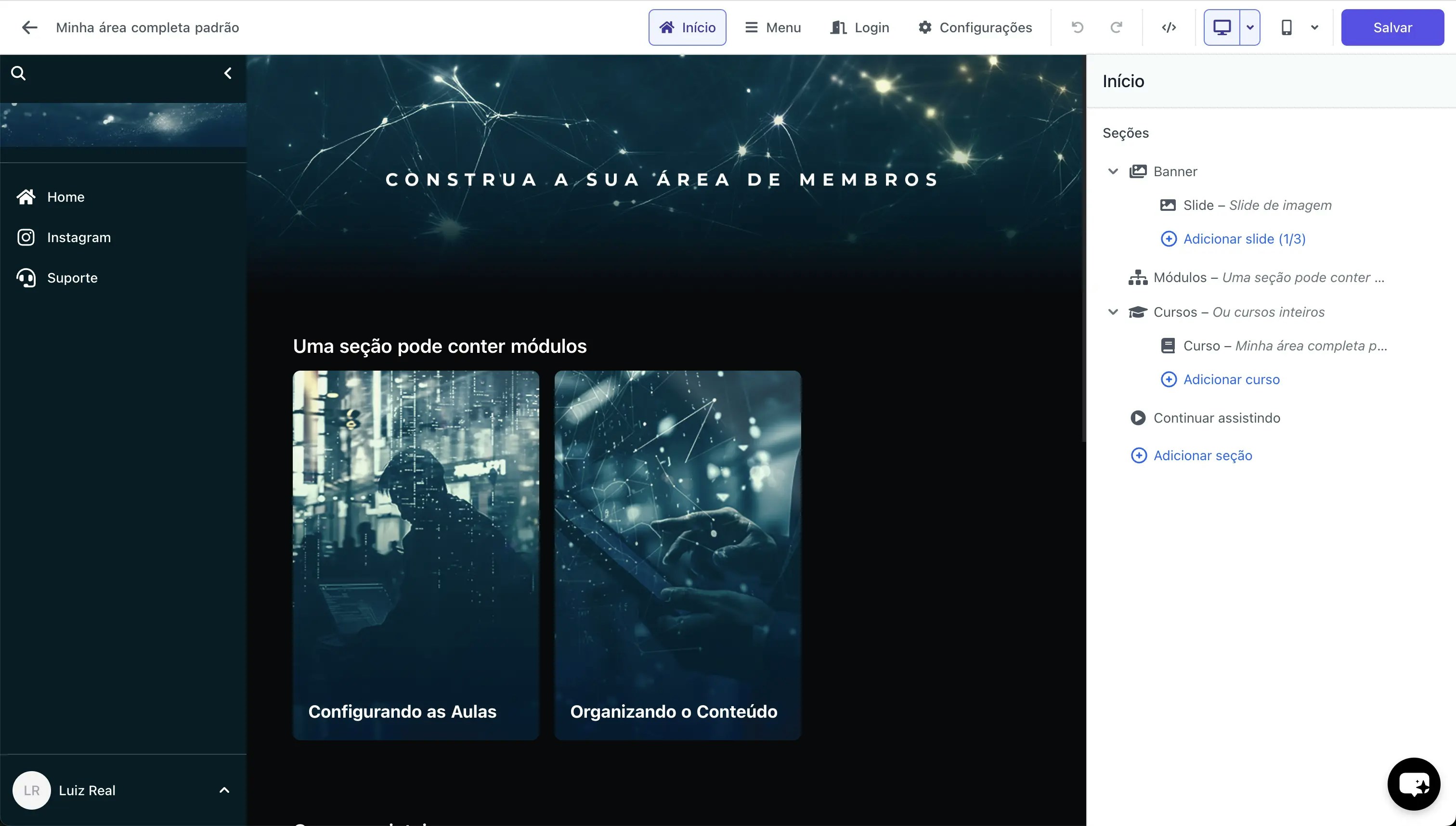 The Theme Editor provides a visual interface to customize your theme without writing code. Changes made in the Theme Editor are reflected in the code, and vice versa.
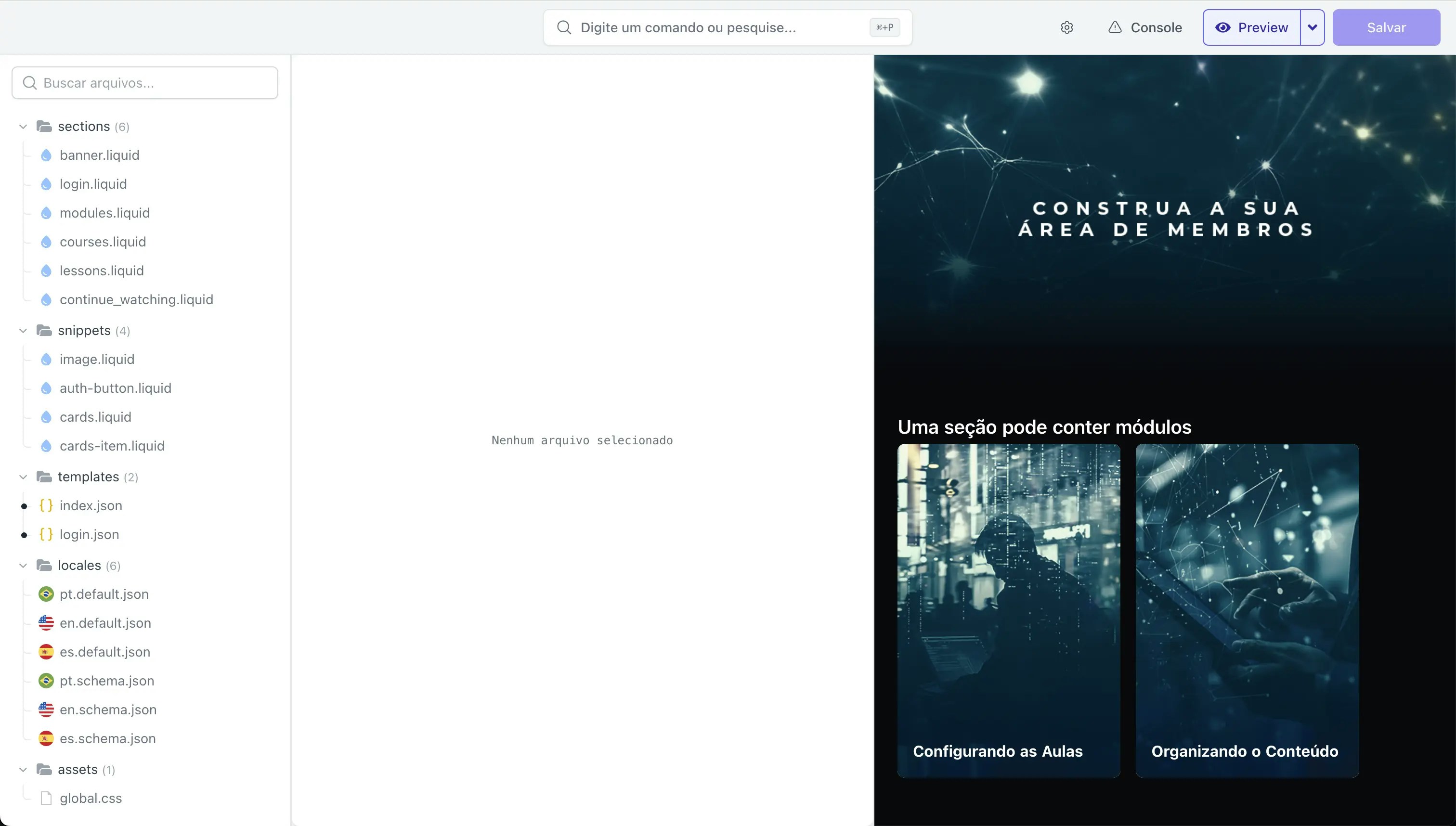 The Code Editor is a full code environment where you can directly modify theme files.
Access the code editor by clicking the "Code Editor" button on Theme Editor's top bar.
The Code Editor is a full code environment where you can directly modify theme files.
Access the code editor by clicking the "Code Editor" button on Theme Editor's top bar.
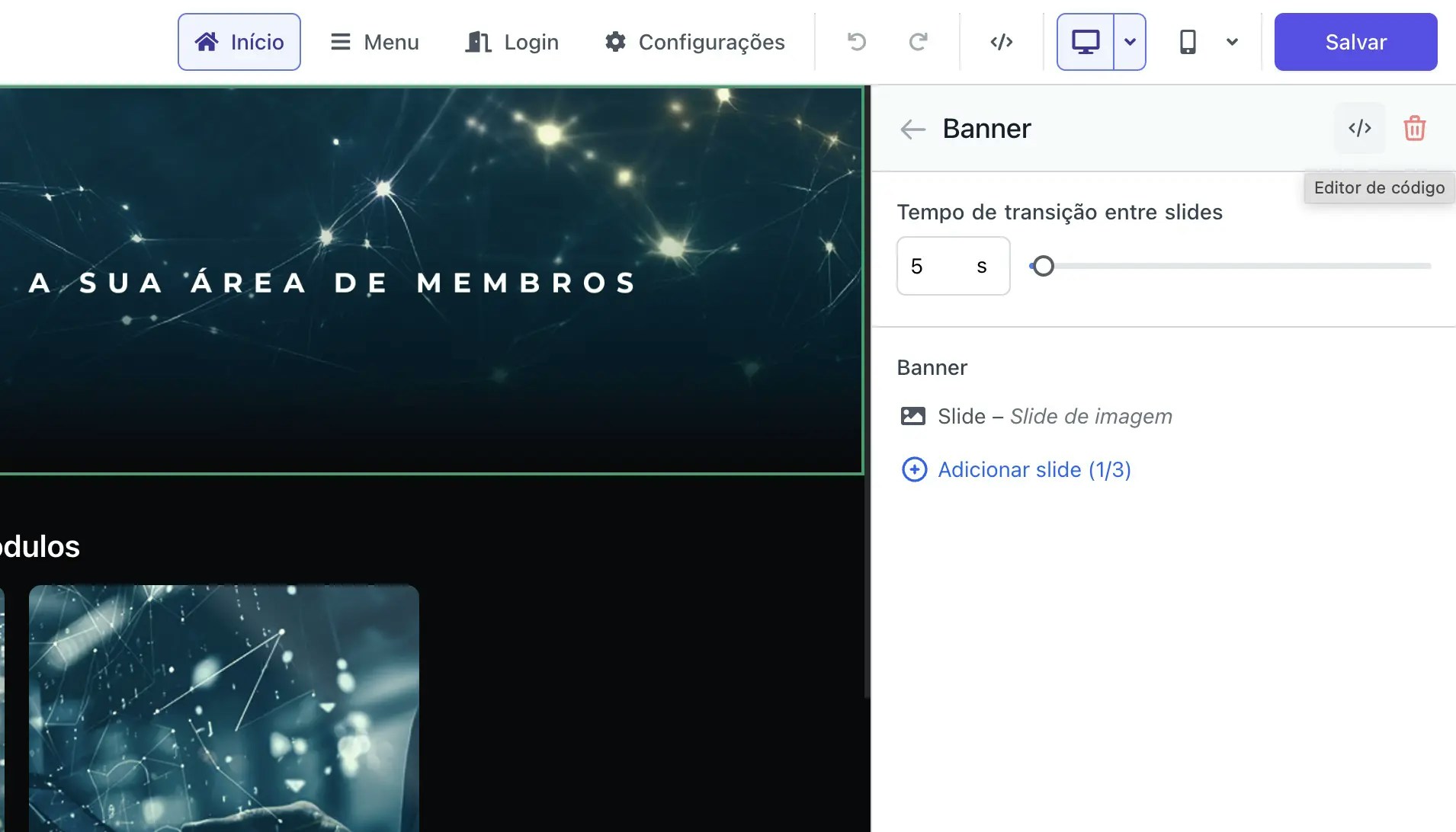
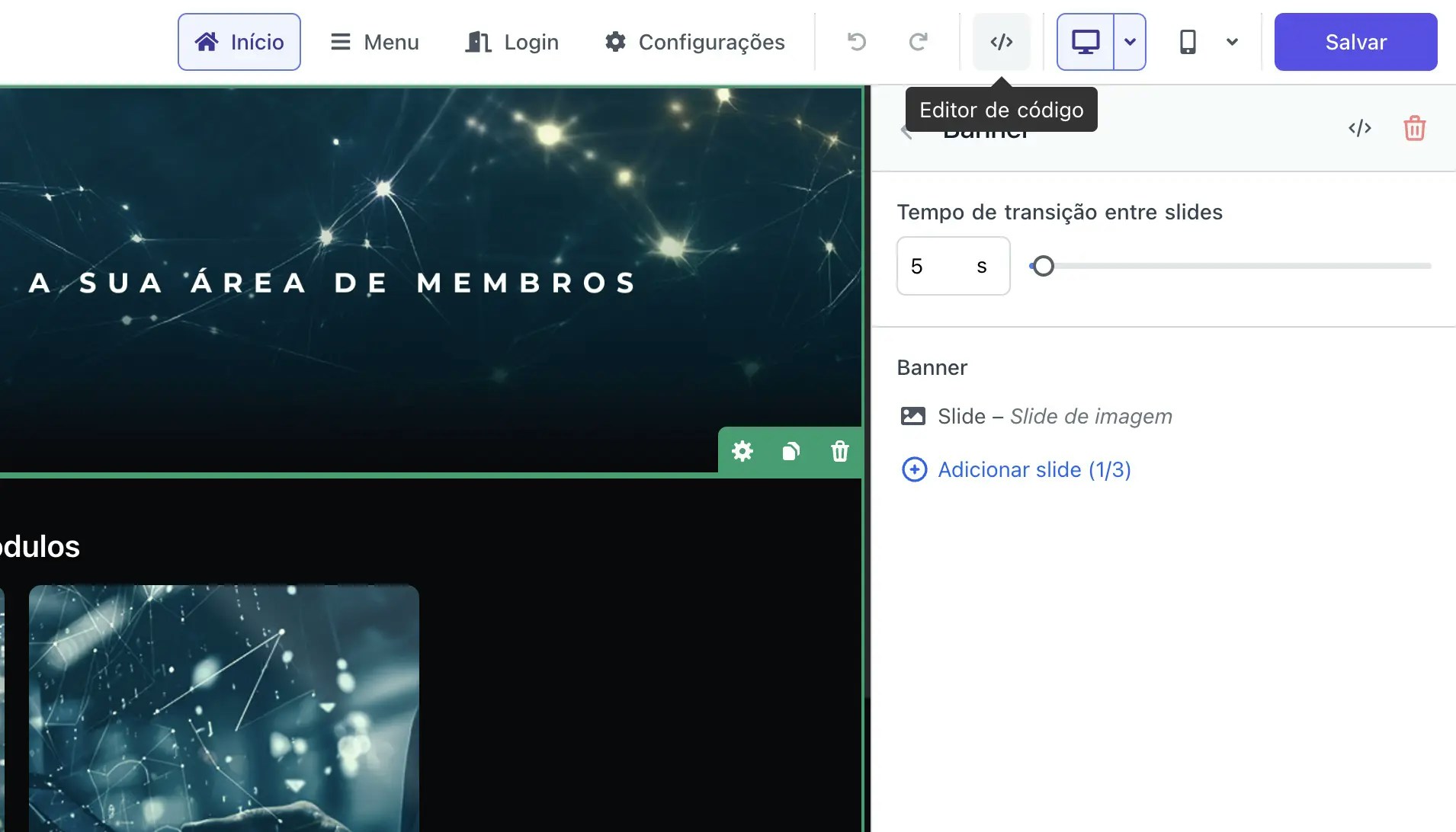 You can also access the Code Editor by clicking the "Code Editor" button in the sidebar when editing a section. This will make the Code Editor open ready for you to edit the corresponding section's template.
 ## Next Steps
Understand how the theme components work together
Learn how to use the global data objects
Dive into the details of each theme component
## Next Steps
Understand how the theme components work together
Learn how to use the global data objects
Dive into the details of each theme component